
Director & PSC checks will be a requirement from 18 November 2025 as part of the Economic Crime and Corporate Transparency Act (ECCTA). Inform Direct provides accountants with a process to check clients via Bright Checks.
The facility to complete checks for clients is limited to those who are Authorised corporate service providers (ACSPs). Your ACSP number can be recorded under the Account tab. You must also have a subscriber account on Inform Direct. How to record an ACSP authorised agent number within Inform Direct?
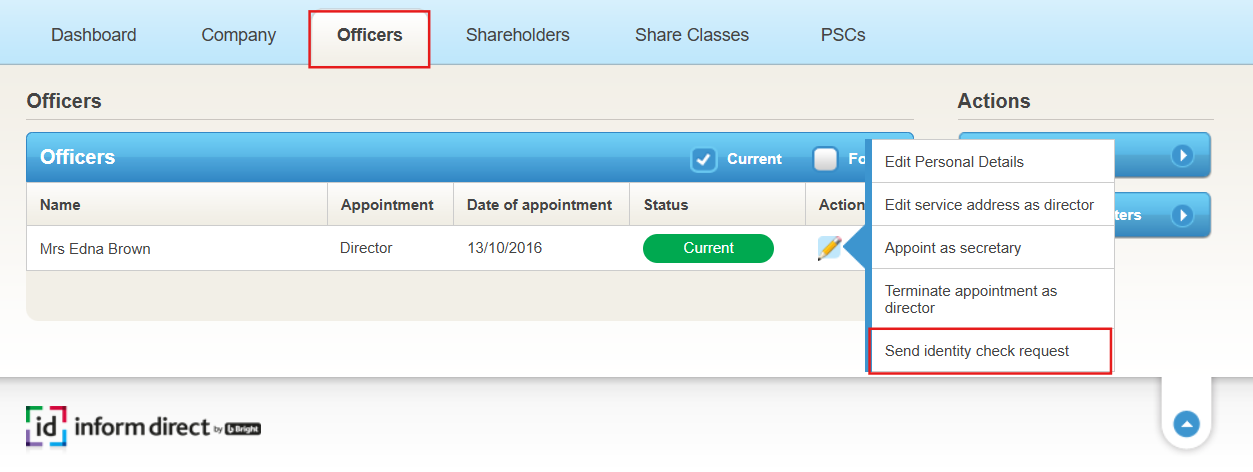
1. Select the Officers/PSCs tab and the yellow pencil next to the individual the check is being completed on. Select Send identity check request.
Important: Company secretaries are not subject to Companies House identity verification requirements, even if they appear in the Officers section. You do not need to request or complete ID checks for company secretaries when submitting a confirmation statement or other filings.
Bulk submission of identity check requests is not supported. Each request must be sent individually, both in Inform Direct and BrightChecks.
Note: You do not need to resend a check, Credas will send automatic reminders to your client at 2, 5 and 10 days. A new check can be initiated from this option, and another fee will be charged if another check is issued using the Send identity check request option. If you send a new check while the original one is pending, this can cause issues.
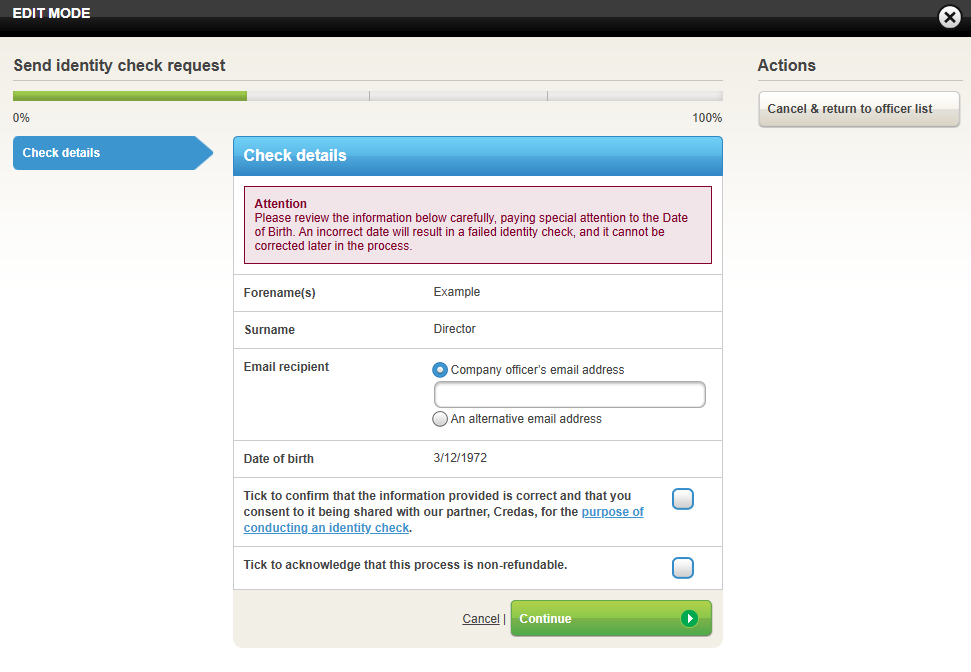
2. The Check details screen will appear, allowing you to review the information currently held. The details of the individual will be populated from the details held on Inform Direct.
Note: It is important to review the information below carefully, paying special attention to the name and date of birth. An incorrect name or date of birth will result in a failed identity check, and it cannot be corrected later in the process and checks are non-refundable. We understand that the Companies House verification process only needs to be completed once. You will not need to verify them again if they change their name or address after.
3. The Email recipient field must be populated with the contact details of the person completing the check. Take caution to ensure that the correct contact details are entered, as the recipient will have access to sensitive data.
Note: We recommend advising your clients in advance to anticipate an email from no-reply@credas.com to avoid it being considered junk mail.
4. The Check details screen also contains an option to select the type of check required. We recommend reading our blog on this subject for clarification of which is required: Companies House Identity Verification: are address checks required?
The check options are:
- Biometric identity check
- Biometric identity and address check
Once selected, please tick to confirm your consent for this information to be shared with our partner Credas, who will be performing the identity check.
5. An email will be sent to the recipient from Credas. It will mention that your firm is requesting the information for the essential identity checks.
We strongly recommend preparing your clients for this email to avoid them incorrectly believing it is spam/phishing.
Note: The steps of the check are shown in our guide How the BrightChecks process works
6. The email sent to the individual will contain a link to complete the check, directing them to complete the process. Full steps of the process are available here: How the BrightChecks identity check process works.
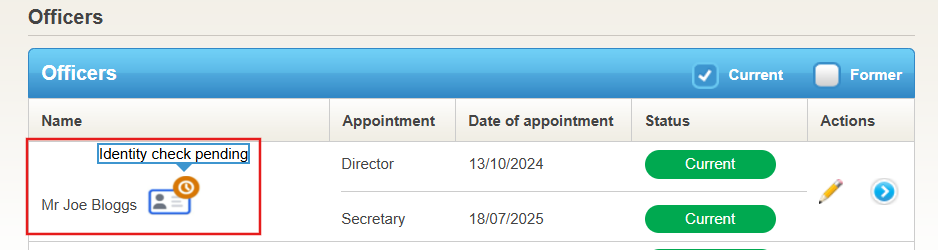
7. An icon will appear next to a director/PSC who has been sent a check. Initially it will show as below to indicate Identity check pending.
Note: Chaser emails are sent by Credas if the check remains incomplete at 2, 5 & 10 days from being sent.
8. Completion of the check by the individual will update the icon. An email will also be sent as a notification that it has been completed.
If a check is passed, the icon will appear as below:

A failed check will appear differently, see:

In the event that a check fails, please follow the steps in this article: What happens when an identity check fails?
9. The passed check must be confirmed to Companies House in your ACSP portal, before the personal code is issued, by Companies House. The details to record in the portal are quite extensive. The sections are noted below:
You will need to tell them the person’s:
- name (as it’s shown on at least one of the identity documents they provided)
- date of birth
- home address
- email address
You will also need to tell them:
- whether the person’s identity documents were checked by a person, or using identity document validation technology (IDVT)
- which documents you used as evidence. You do not need to submit copies of the documents you used to verify their identity. However, for relevant documents, you’ll need to give the document reference number/equivalent, expiry date, and country of issue
- the date you completed the identity checks
You’ll also need to confirm a statement that you:
- are satisfied that the person is who they claim to be
- have completed identity checks that meet the Companies House identity verification standard
Only once you have entered the above in your ACSP portal, will Companies House then email the Director or PSC their Companies House personal code. This is an 11-character code.
The client will need to provide you with the personal code. The personal code can be entered in the personal details section, see How to add a Companies House personal code.
An icon will appear next to the director/PSC once a code is recorded:

Once an identity check has been sent, it can not be stopped or reversed. If the information is wrong, a new check will need to be sent, and the previous one can be ignored.
What if my client cannot find the email with the check?
If you have already sent an identity check request, do not send a new request. Automatic reminders are sent at 2, 5, and 10 days after the original request. If the recipient cannot find the email, please contact Inform Direct support, and we can provide an alternative way for them to access the check.