
It is quick and simple to add (or re-add) a card so all future payments are settled through Stripe. You will be reading this guide because Inform Direct have asked you to update your card details. This is what is required:
1. Login to your Inform Direct account as usual.
2. Click on the Account button (see below) at the top of the screen.

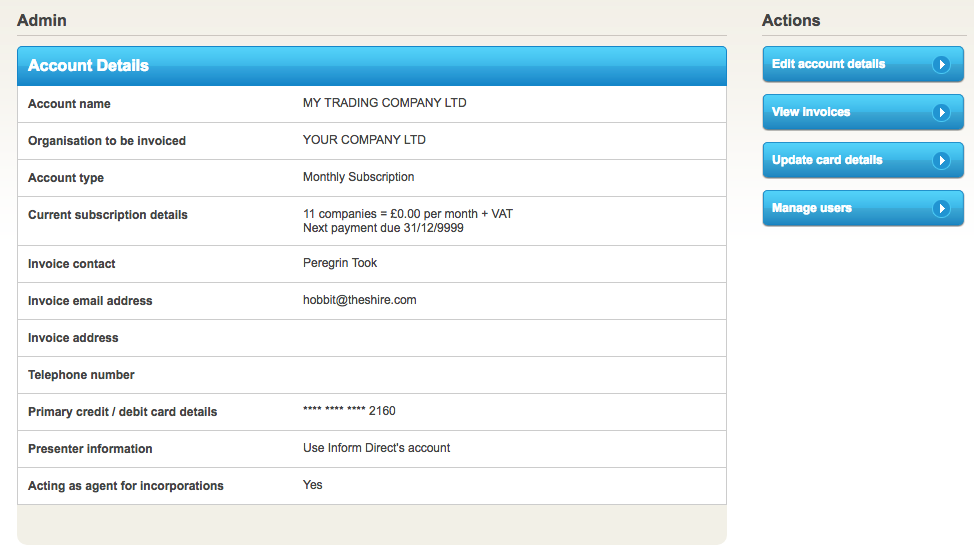
3. This will display your Account Details. From the blue buttons on the right of your screen select "Update card details".
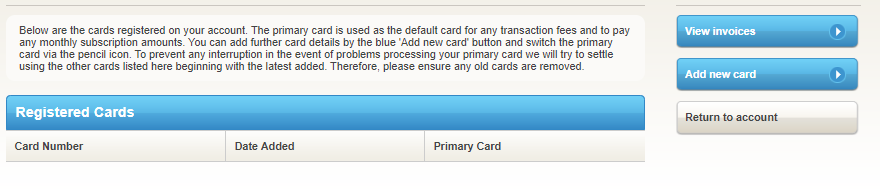
4. To add the new card (which can be adding again the same card as already in the system) click on the blue "Add new card" button.
5. Insert your card details and then click the red 'Add card' button.
Once done, all future payments will be made via Stripe. As a user you will not notice any difference in how Inform Direct operates. The invoices you receive will be unchanged and the entries on your card statement will still show Inform Direct as the merchant.
6. The new card should automatically become the Primary Card i.e. the first one that Inform Direct will call on to take a payment from. You will see a Yes against it as per the below. If necessary you can click on the pencil to make the new card the Primary Card.
7. Finally you should remove the old card(s). To do this click on the pencil (see below) opposite the old card and click on the Remove card option.